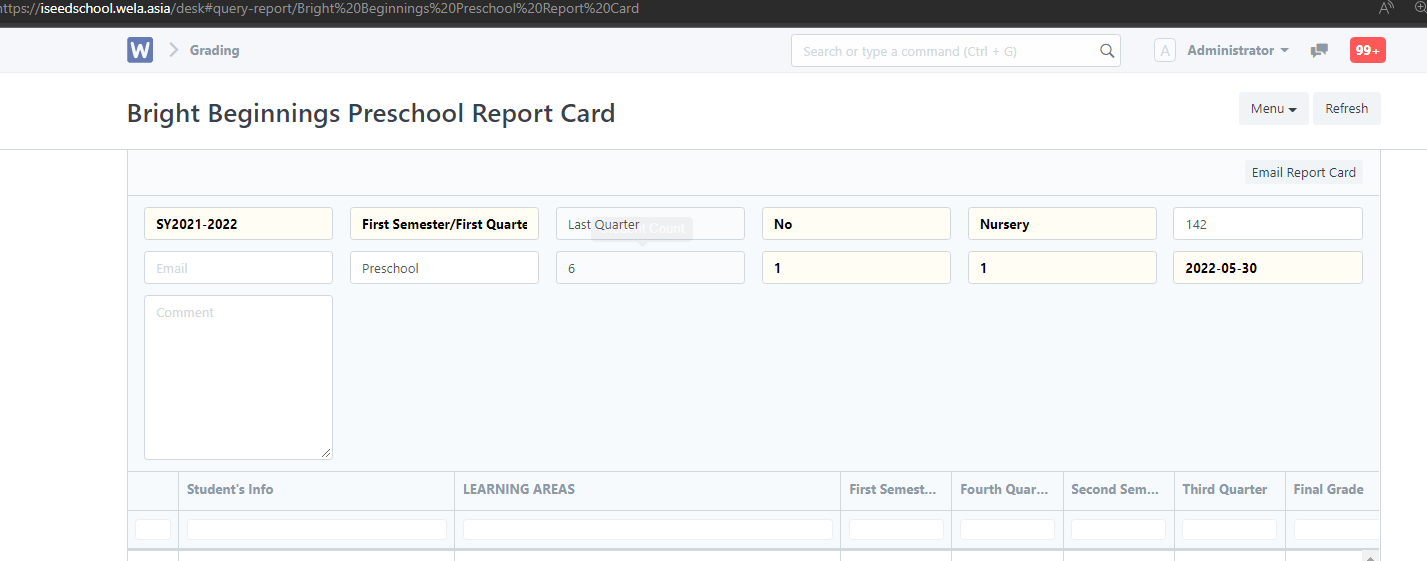
After logging in, click on the Spreadsheets icon to generate spreadsheet.
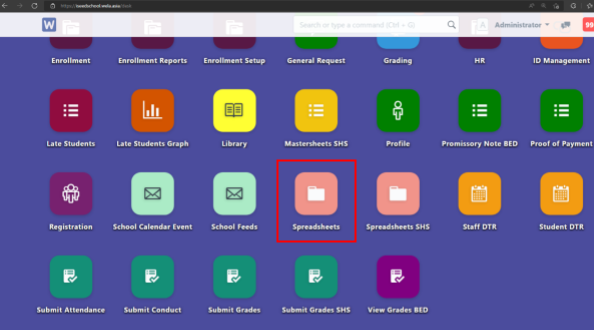
Click New on the top-right.
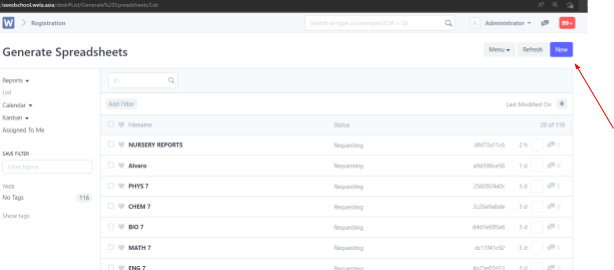
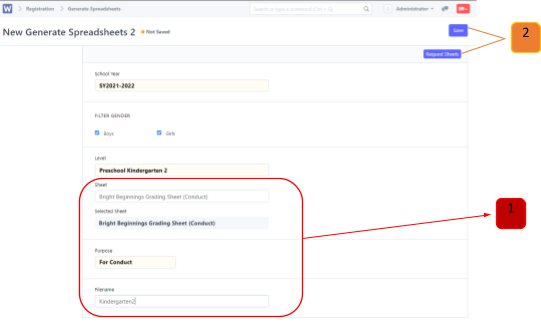
Make sure the School Year is correct, Check both Boys and Girls. Then Select the level, for Bright Beginnings: Nursery – Kindergarten 2
Select the sheet for Bright Beginnings: “Bright Beginnings Grading Sheet (Conduct)”. The Purpose will automatically be For Conduct. Then input a file name. After that click save and request sheets in the top right.
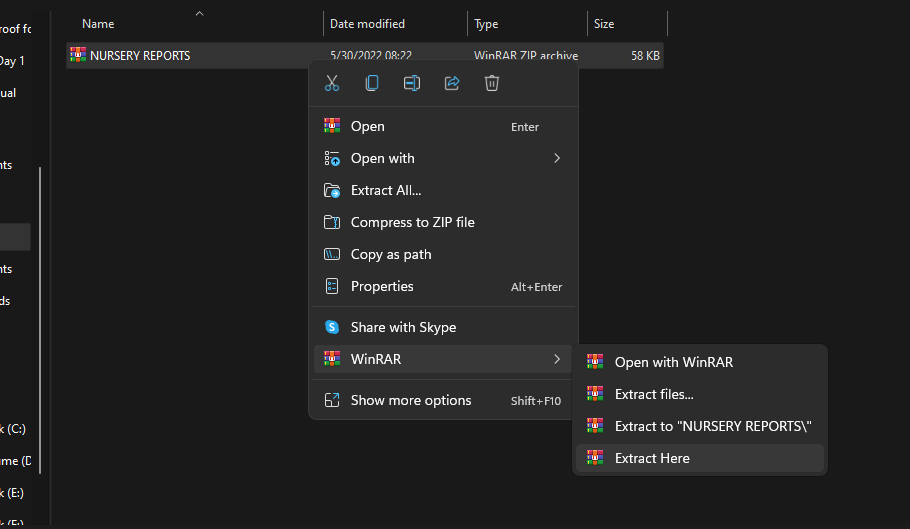
File will be downloaded as a Zip file. Kindly extract the excel file.
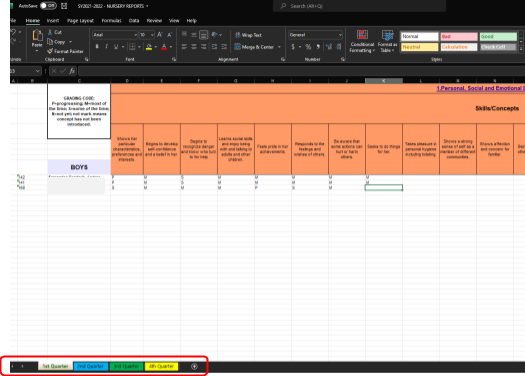
Open the excel file and input grading. There are 4 sheets which indicates the semester/quarters in the bottom left. For Nursery/preschool we grade using the letters P (Progressing), M (most of the time), S (some of the time) & N (not yet) same with the report card.
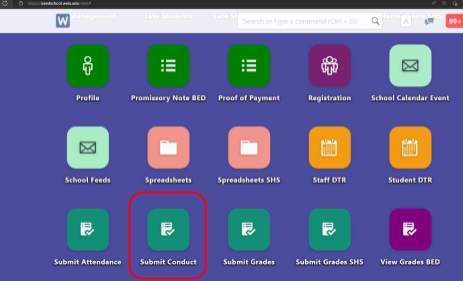
After everything is done save the edited file and upload in Submit conduct icon at the main page.
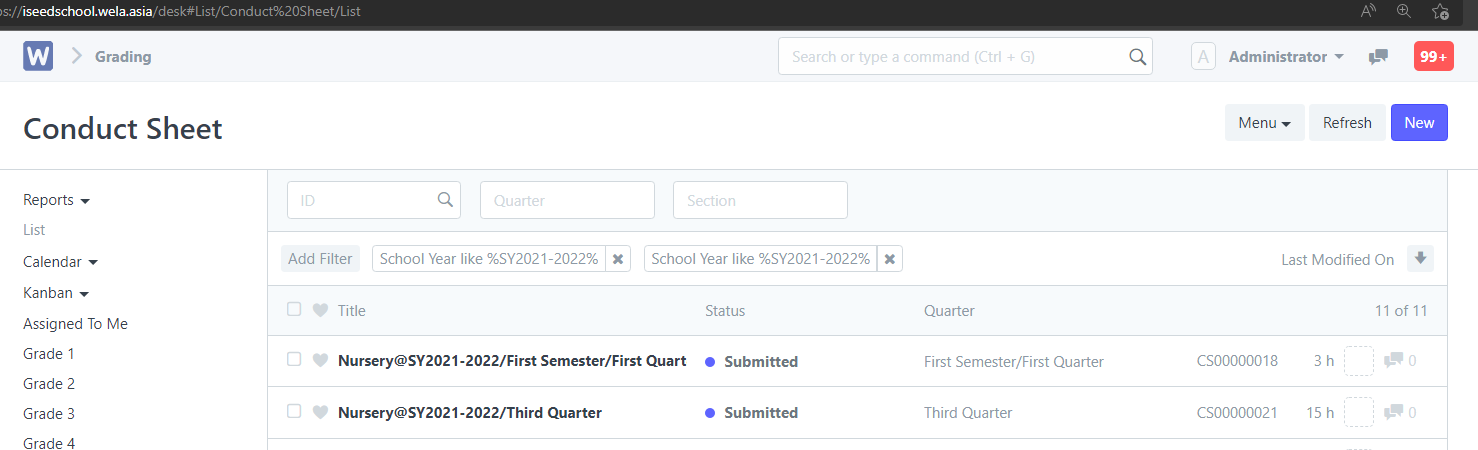
In the Submit conduct page click New on the top right to submit the grades.
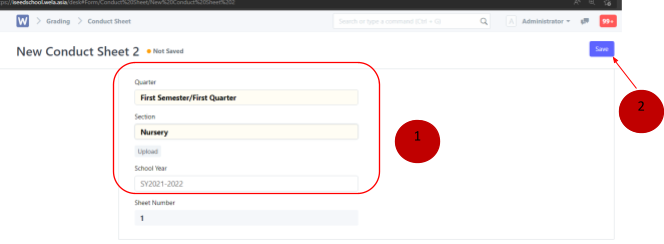
Pick the correct Semester/Quarter [must upload one by one for each semester], choose a Section (Nursery – Preschool) make sure it is the correct school year. Then click save.
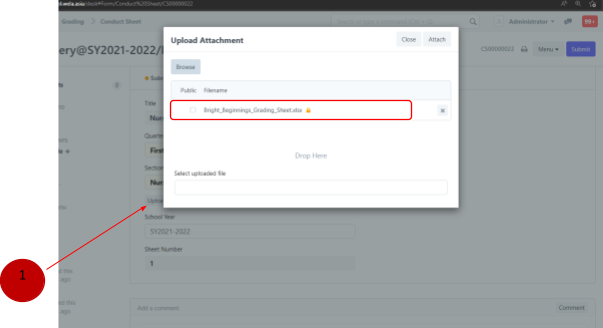
After clicking save > click Upload and attach the edited file. Make sure the tiny box under public is not ticked.
After attaching the file click submit
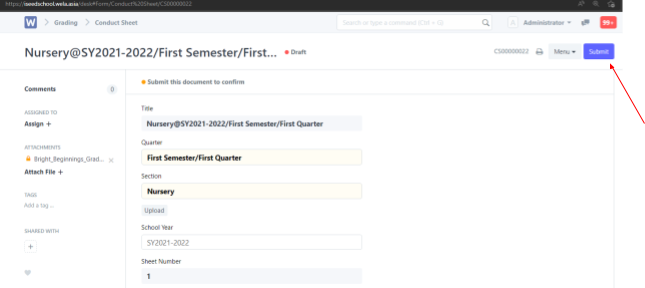
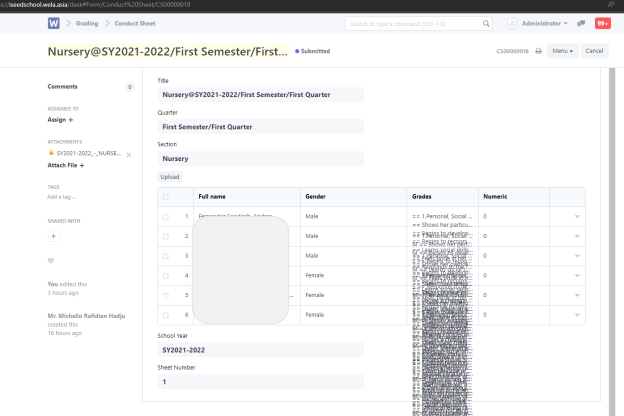
After submitting it should look something like this if it’s not a duplicate
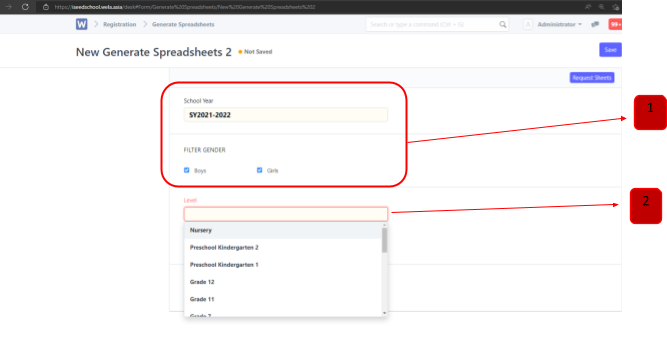
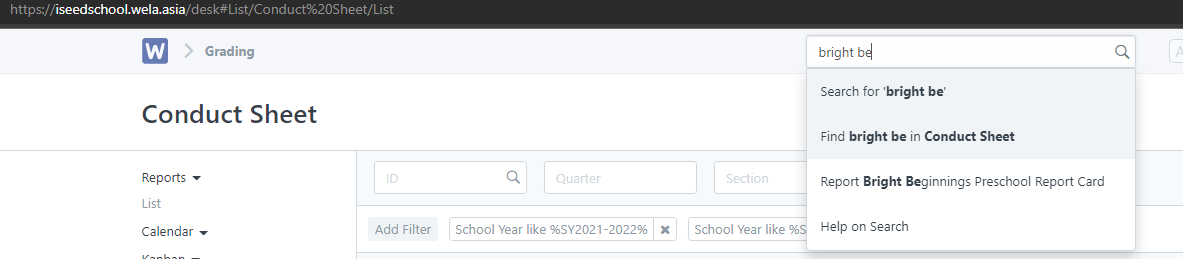
To check the Bright Beginnings report card search “Bright Beginnings Preschool Report Card”
Pick Section (Nursery – Preschool), select a student and enter a date. After that Click the drop-down Menu and select print