Setup
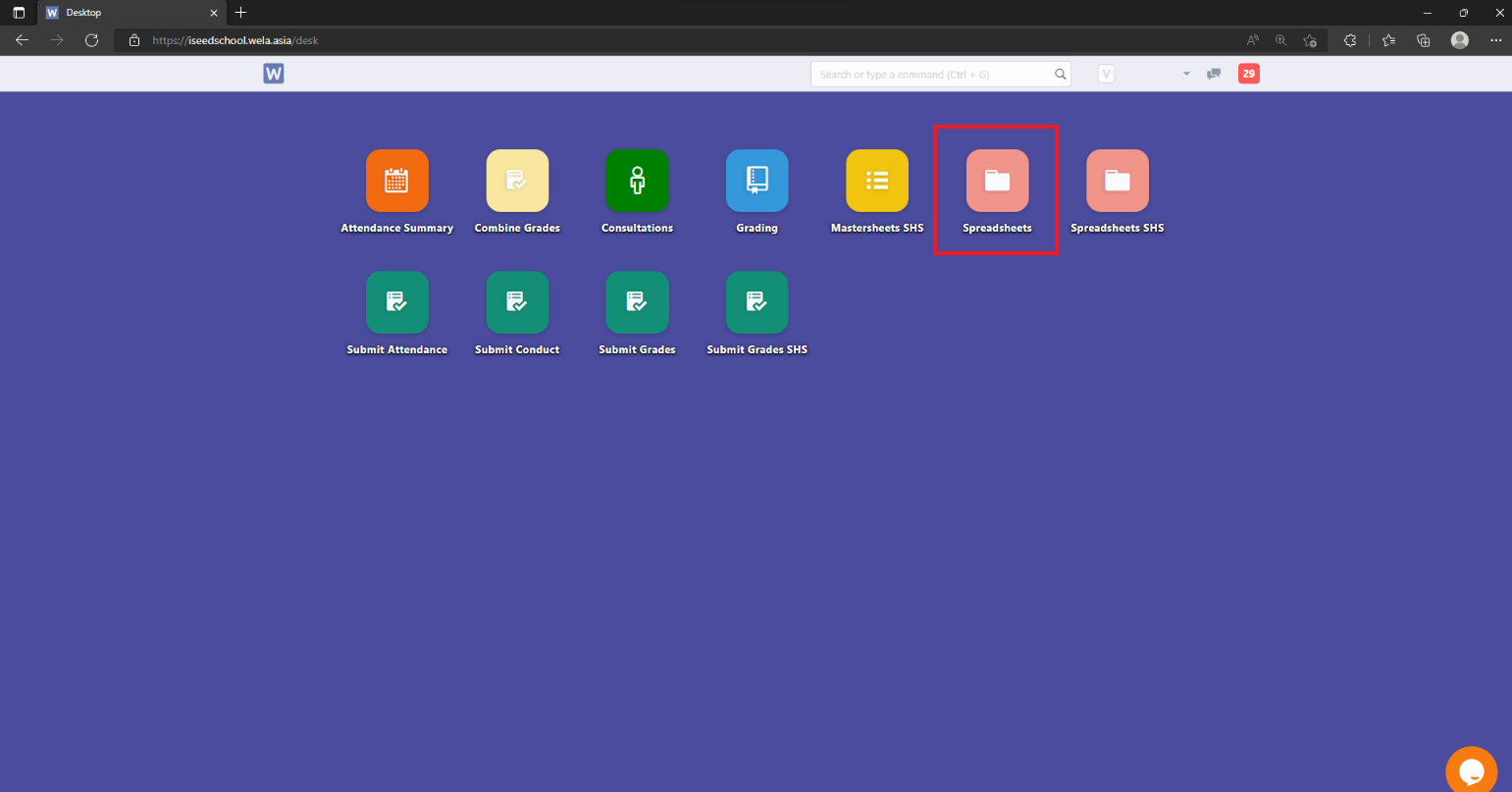
After logging in, click on the Spreadsheets icon to generate the grading sheet.
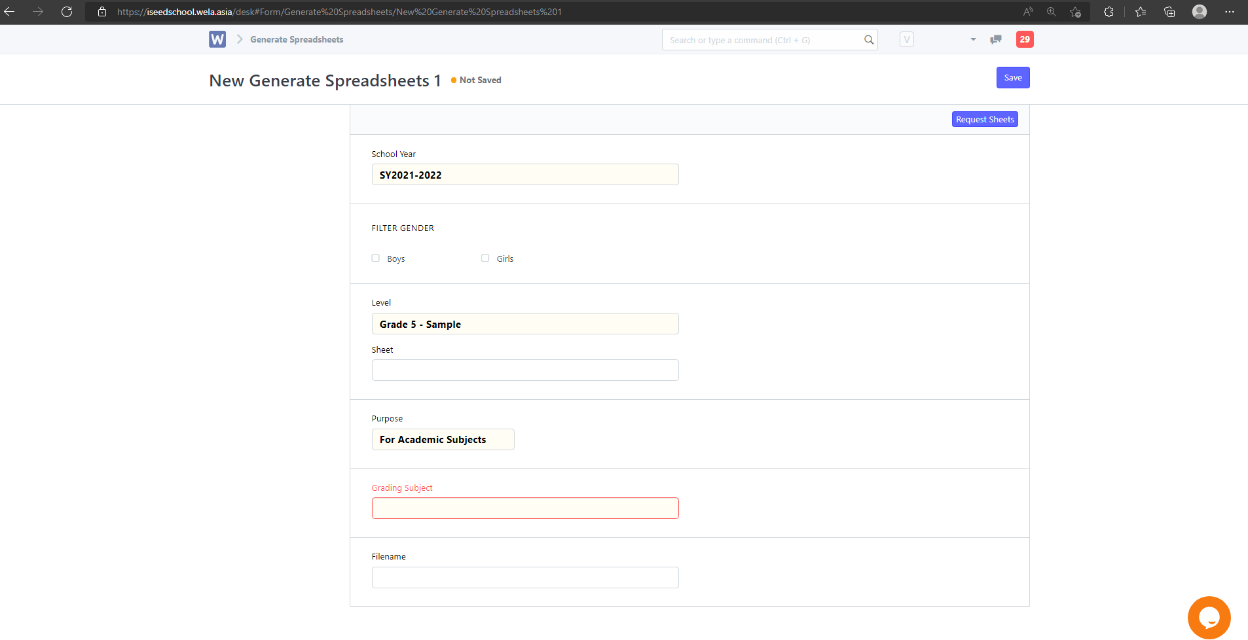
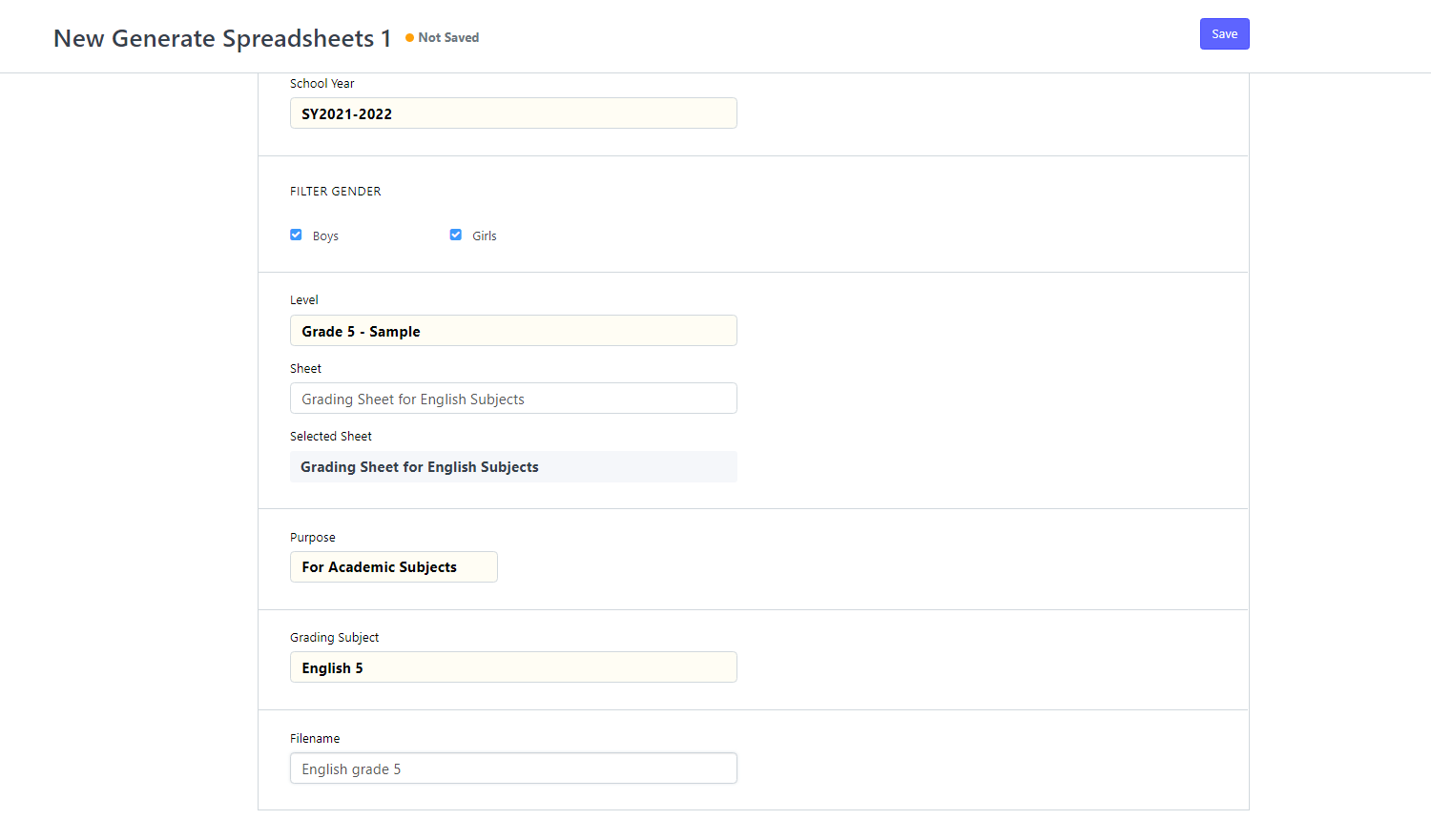
Check the school year > Tick both Boys & Girls in the Filter Gender > Select the specific grade level
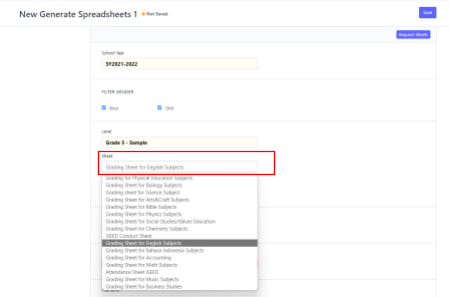
Select the sheet for the specific subject (ex: Grading sheet for English subject) >
Purpose: For Academic Subjects (grading), For conduct sheet (for growth in habits and attitudes & Preschool grading), For Other (Attendance sheet)
Grading Subject should correspond with the subject chosen > Filename will be the name of the file when you download
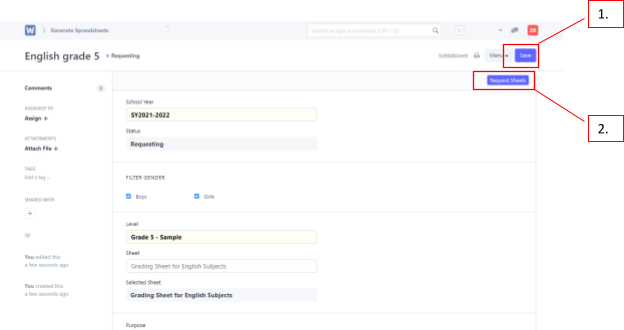
After everything is correct, click save and then request sheets
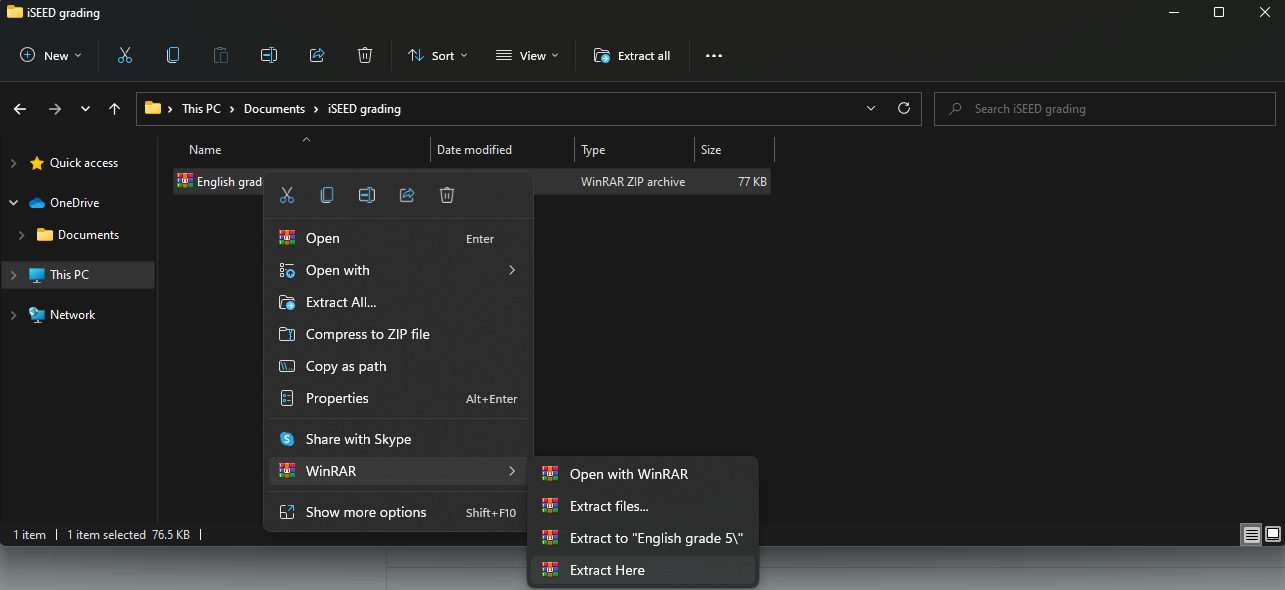
File will be downloaded as zip file, extract the document using WinRAR or similar program “Extract here” to immediately bring out the file
Inputting Grades
The generated grading sheet can be used for the whole semester/school year. Each generated sheet will have their own details as seen the middle. Girl students can be seen when scrolled down.
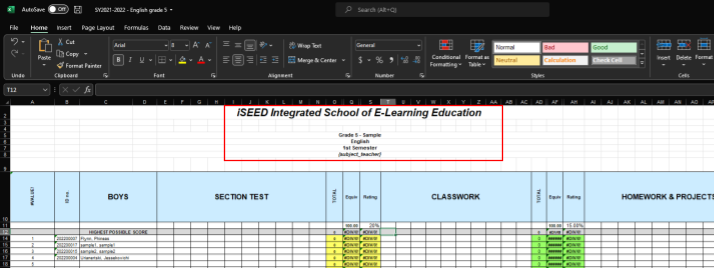
When adding grades make sure to input the “HIGHEST POSSIBLE SCORE” (ex: 100). The row above it can be used for reference/notes.
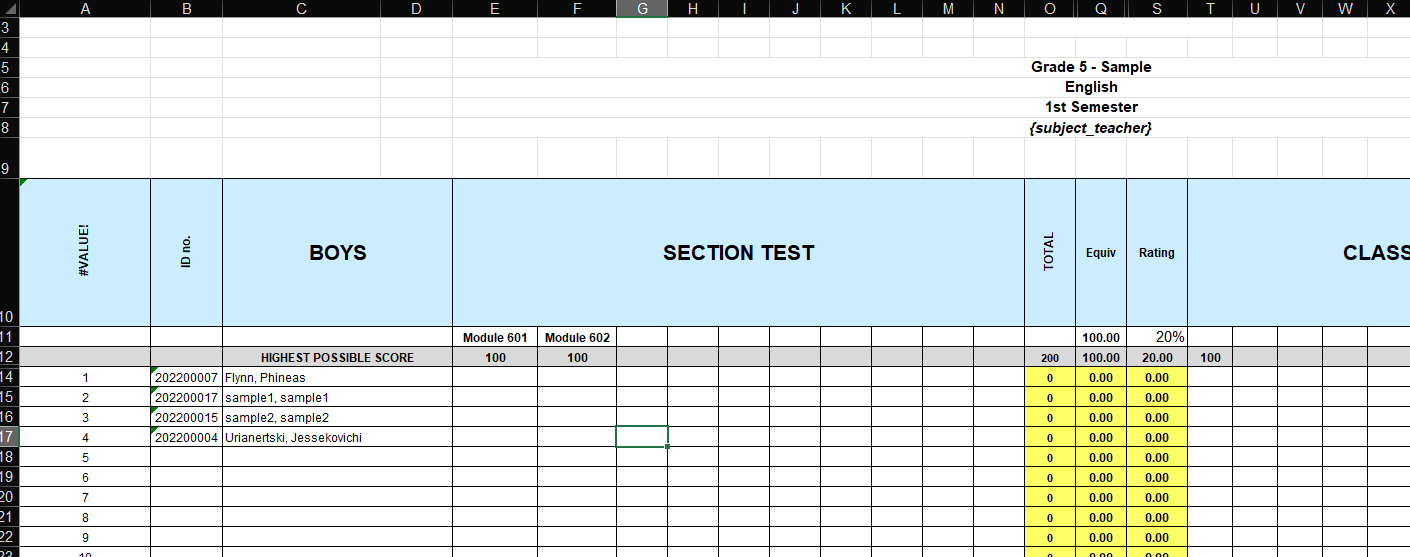
Fill the marks and on the bottom left make sure the semester you want to input is correct
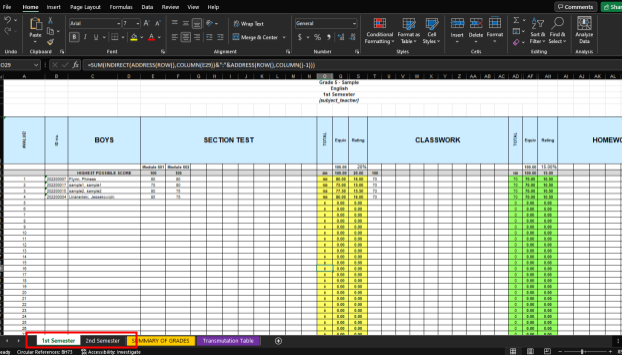
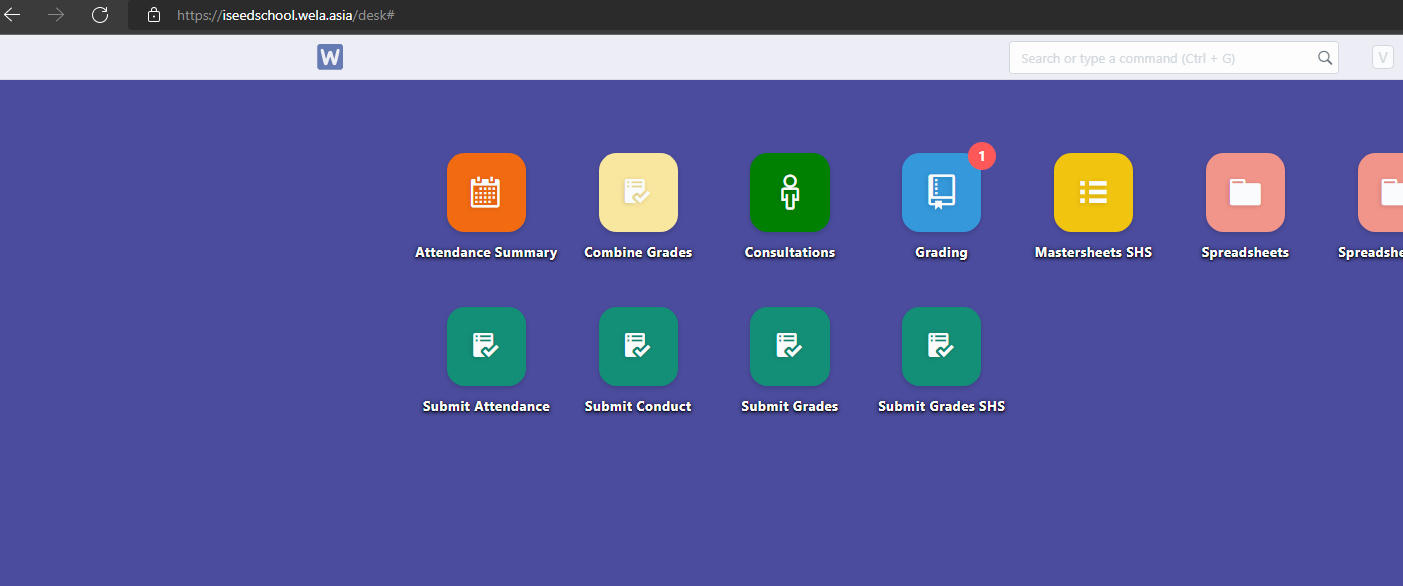
After saving the changes > Upload the file in the Submit grades icon at iSEED portal
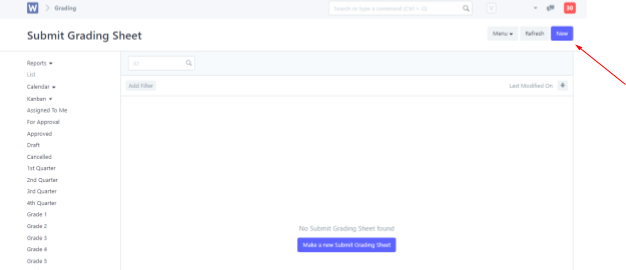
Click new on the top right
Choose correct School year & Semester > Check both boys and girls and click save
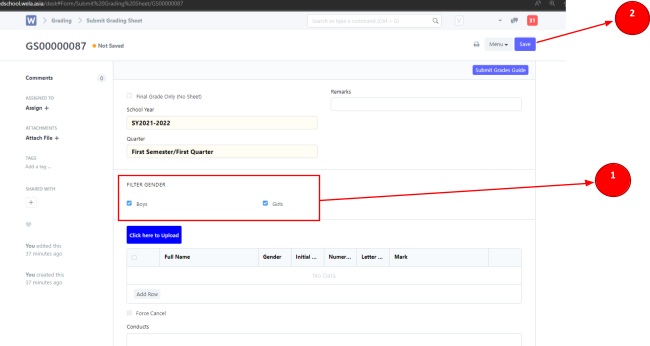
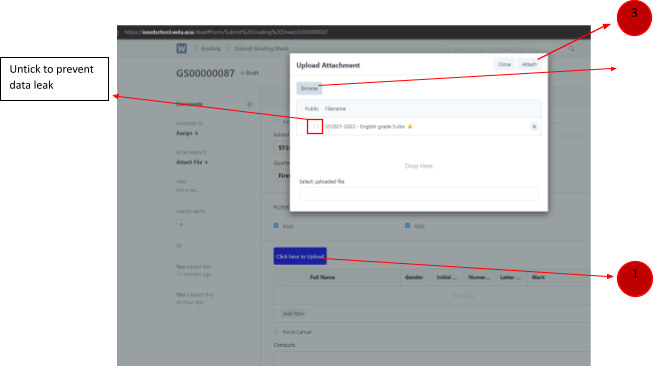
Click “Click here to upload” > Browse the grading sheet file > Leave the public box unticked > lastly click attach
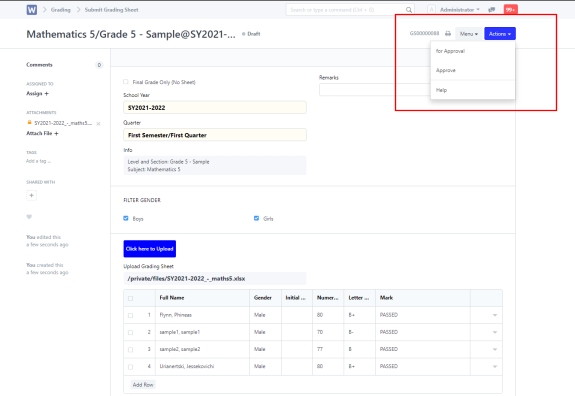
After attaching file click Actions and select “for Approval” for class adviser to approve. It should look something like this if it’s not a duplicate.